I have seen sooooo many sweet ways to display your wedding song on Pinterest….
It helped inspire me with this little art piece in honor of Valentine’s Day. Here are the steps I used to create it.
Open Picasa and choose the photo for the background.
Click create collage.
On the settings there is a top box you can click the right arrow and pull down a list. Click MultiExposure.
Page format is an 8 by 10.
Click Create Collage
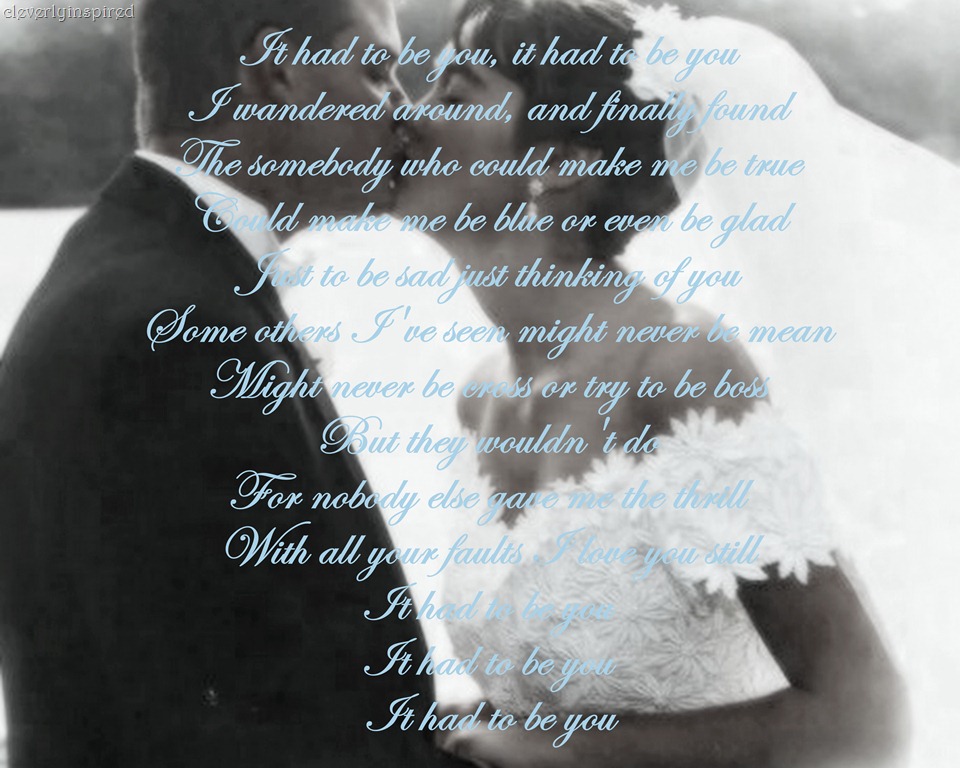
Now you are able to make some edit changes to the background photo.
I used Soften
Then Infrared Film.
Then I used the text box to type in the lyrics. I used Edwardian Script for the font.
Our Wedding Song was “It had to be You” ….I love the lyrics…
It had to be you,
it had to be you I wandered around,
and finally found The somebody who could make me be true
Could make me be blue
or even be glad
Just to be sad
just thinking of you
Some others I’ve seen
might never be mean
Might never be cross
or try to be boss
But they wouldn’t do
For nobody else gave me the thrill
With all your faults I love you still
It had to be you
It had to be you
It had to be you
Happy Heart Day friends…(and to my honey :)
Here is one of my inspirations…
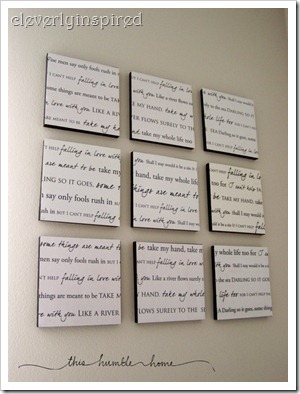
this humble home
Sharing at Classy Clutter, Stories of A to Z




So sweet!!
This is beautiful, Thanks for sharing
this sounded like a wonderful idea — I printed your instructions so I could follow along — but I could only get as far as choosing the multiexposure and 8×10 — I searched and searched and never found the soften or infrared choices –
Hi Brenda! Did you download the recent update to Picasa? Here is a post I did on that recently…
https://cleverlyinspired.com/2012/01/picasas-latest-update-love/
The soften and infrared are on the free update :)
Thanks so much for the tutorial! Just did it, yeah a little late, but sent to walgreens for printing, now off to find a frame!
Awesome!!! So happy you got to get it finished!! Thanks for sharing!
Sorry forgot to attach pic!
http://laurmelashouse.blogspot.com/2012/02/happy-hearts-day.html
Have a great day!